Why bother
HireHire is neighbours lending to neighbours. Owners look at who is asking before they respond, and renters look at who is offering. A clear, friendly photo of you, not your dog or your car, is the fastest way to look like someone worth dealing with.
Step by step
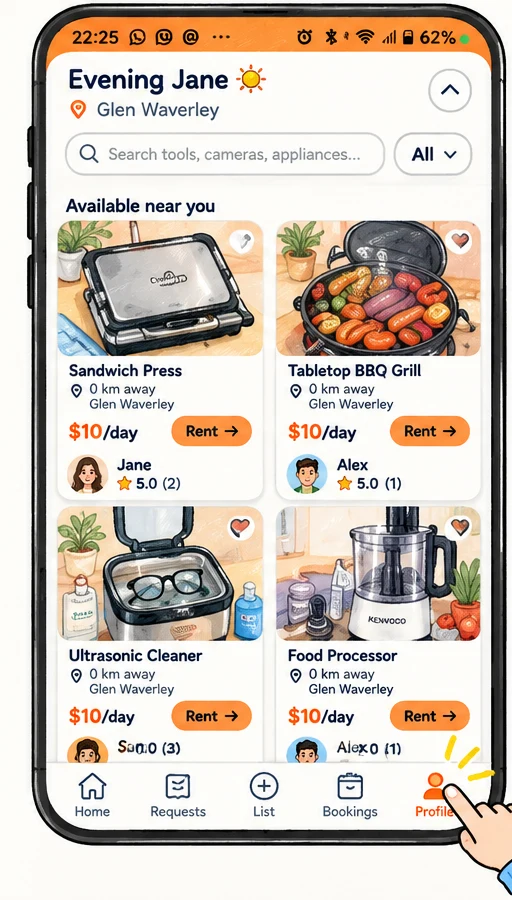
Open your profile
Tap the Profile tab at the bottom of the screen. On a laptop, click your avatar circle in the top right.
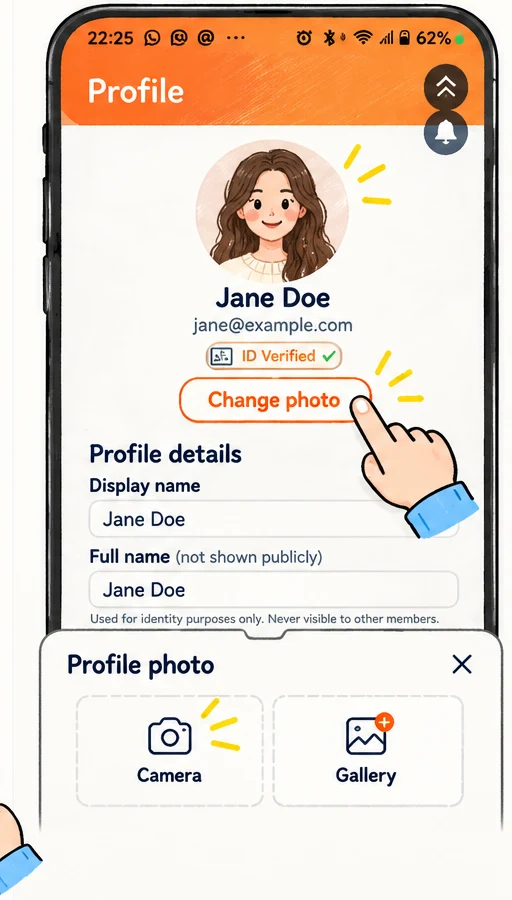
Tap Change photo
It sits right under your avatar. A small window titled Profile photo opens with two choices: Camera to take a new one, or Gallery to pick one you already have.
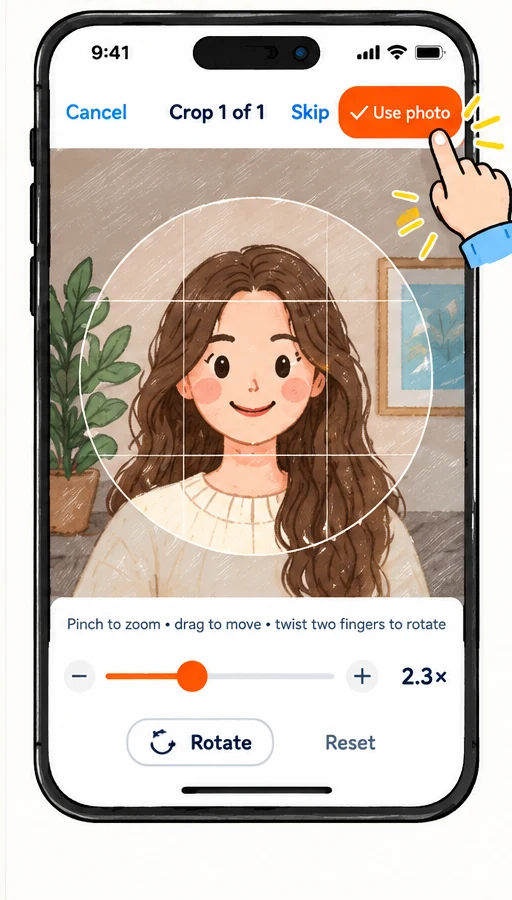
Crop it
Drag the photo so your face fills the circle, then tap Use photo. Any common image format works; it is saved as a JPEG for you.
Check the toast
You will see Profile photo updated for a moment. If you see Upload failed. Please try again., check your connection and repeat step 2.
While you are there
Scroll to Profile details and set a Display name. That is how neighbours see you in requests and offers. Your Full name is private and only used for identity checks. Tap Save changes.
Ready to try it?
Open the appStuck or something looks different on your screen? Email support@hirehire.com.au and tell us what you were trying to do.