Step by step
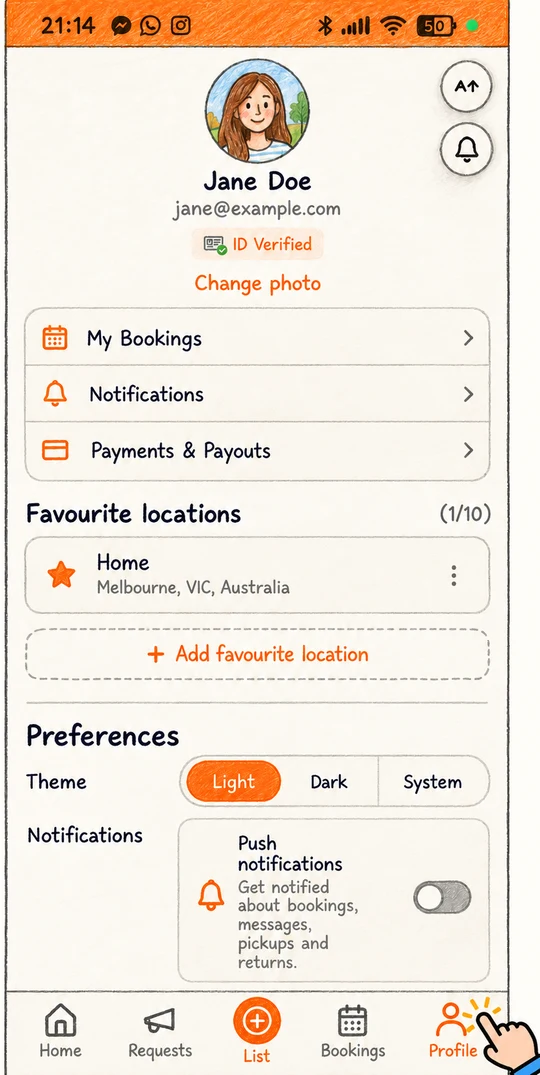
Open Preferences on your profile
Tap the Profile tab and scroll to Preferences. You will see Theme and Notifications.
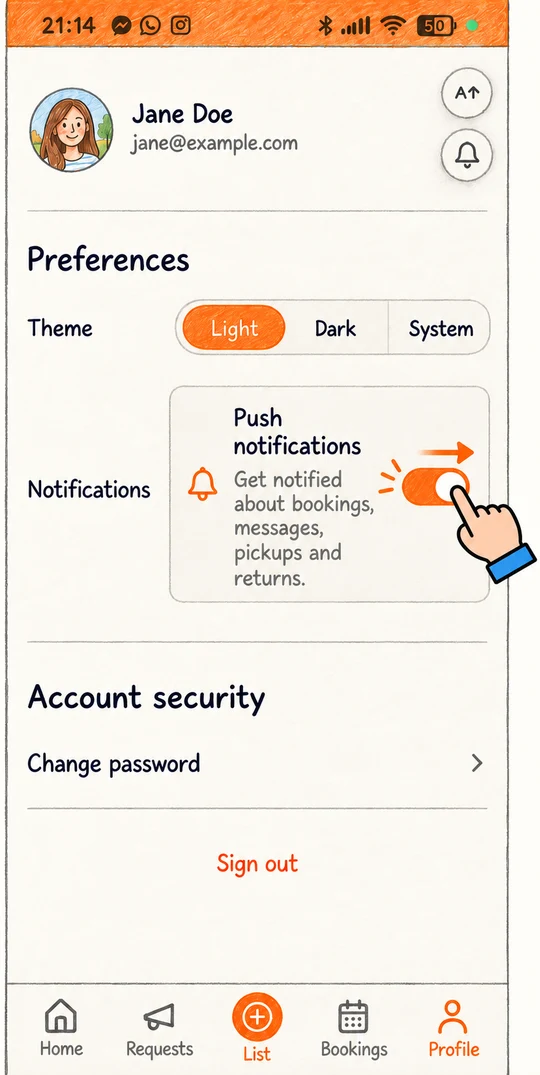
Turn on push notifications
Inside Notifications is a card that says Push notifications, with the line Get notified about bookings, messages, pickups and returns. Flip the switch on.
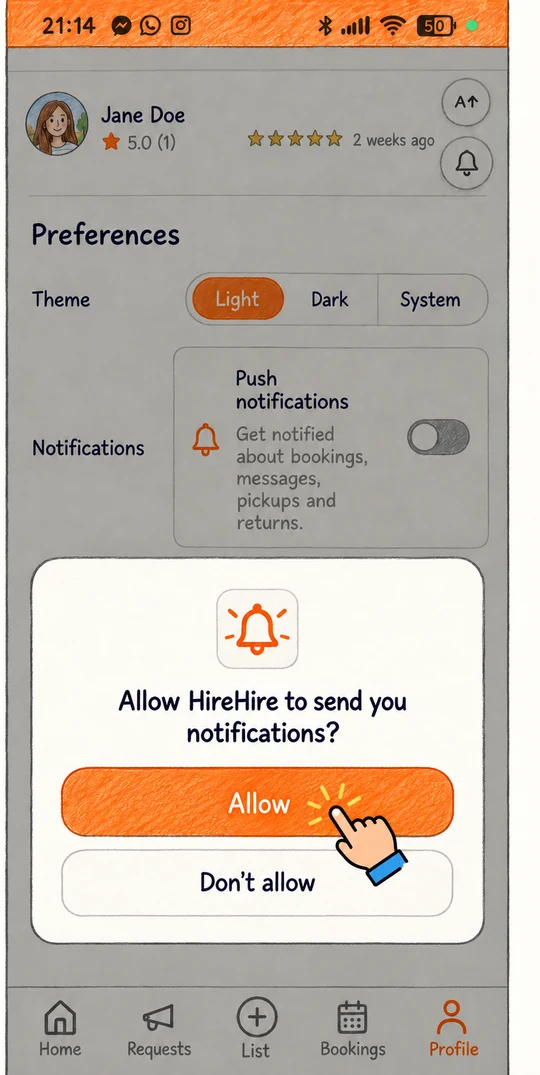
Say yes when your device asks
Your phone or browser will ask whether HireHire may send notifications. Choose Allow.
iPhone users, one extra step
iPhones only allow notifications from apps on the home screen. In Safari, tap the share icon, choose Add to Home Screen, then open HireHire from that icon and follow the steps above. The app will prompt you if you skipped this.
If the switch is greyed out
The message Blocked in your browser settings means notifications were declined earlier. Open your phone or browser settings, find HireHire under notifications or site permissions, allow it, then come back and flip the switch.
Ready to try it?
Open the appStuck or something looks different on your screen? Email support@hirehire.com.au and tell us what you were trying to do.